
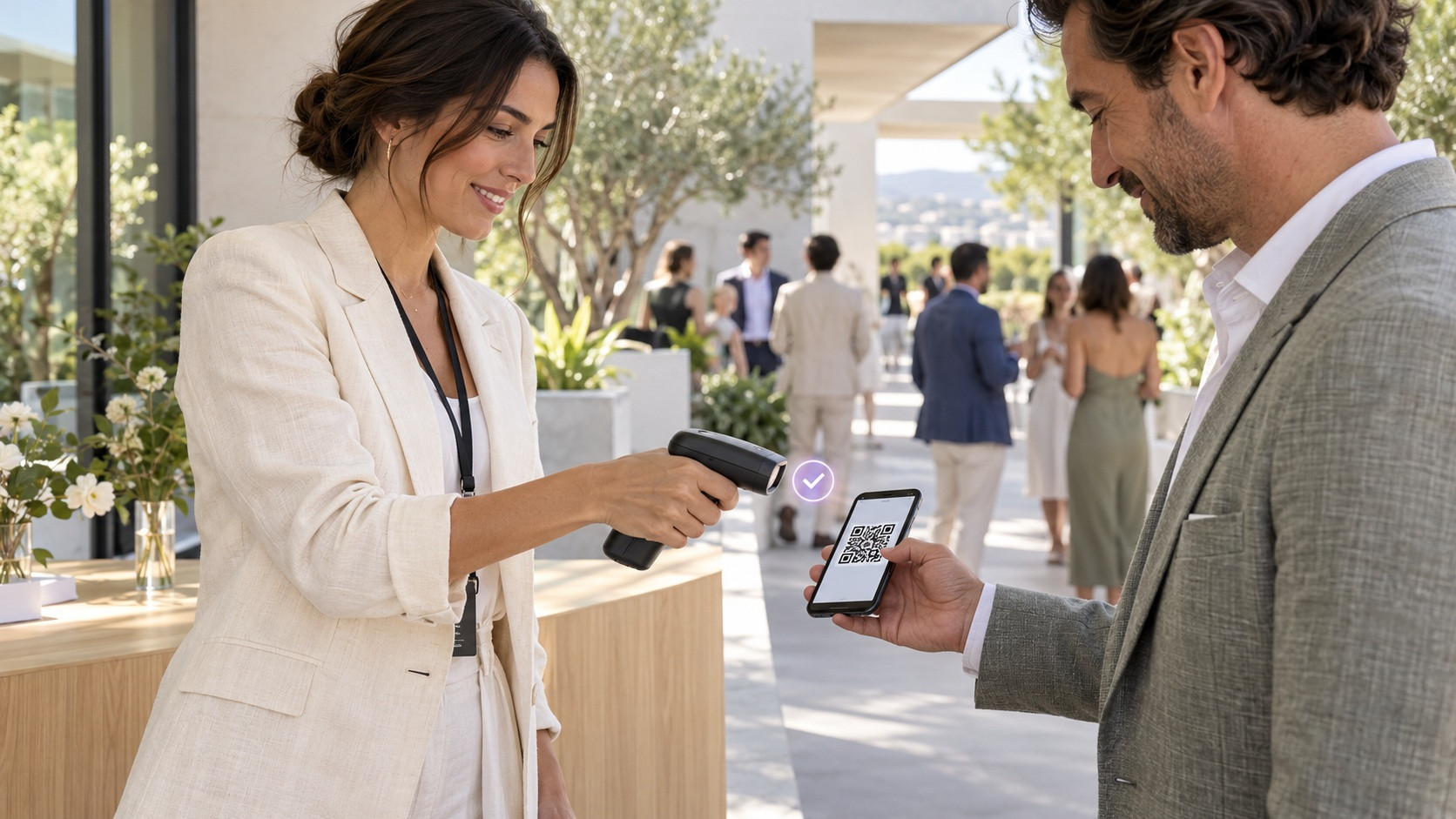

QR check-in starts working before the first guest arrives. For a small or medium-sized business organizing a training session, demonstration, or meeting with clients, reception preparation matters just as much as the digital pass. A available scanner is of little use if no one knows what to do when a different name, a modified reservation, or a person without their code appears.
The goal is for the team to be able to welcome, verify, and guide people using a simple procedure. These steps help prepare access and identify difficulties during a rehearsal, when there is still time to correct them.
Define what check-in must confirm
Before setting up the operation, write down what reception needs to verify: the person, the event, the time, or the corresponding reservation. Also define what each scan represents. An arrival, a departure, and a pass inquiry are different actions; staff must know which one applies at each moment.
Establish who can resolve exceptions and according to what criteria. If a guest requests a session change or arrives with a companion, reception needs an agreed-upon response. Prevent each team member from improvising permissions that later become difficult to reconcile.
Prepare the attendee journey
Review the advance instructions from the perspective of someone visiting the venue for the first time. They should explain where the entrance is, what time reception opens, and how to present the pass. A precise location and a visible reference can prevent repeated questions in the line.
At the venue, separate regular scanning from incident support if space allows. One person can guide arrivals while another reviews special cases. Signage should distinguish event access from other areas of the business, especially if the building remains in operation during the activity.
Conduct a complete test with the actual equipment
Test with the phones or tablets you will use, at the exact reception point. Check the battery, camera, permissions, account access, and connectivity. Light, reflections, and the size of the code on the screen can affect scanning, so it is a good idea to test under several conditions.
- Presenta un pase válido y confirma que corresponde al evento y a la acción prevista.
- Prueba un código que no se pueda leer y acuerda cómo solicitar otra presentación.
- Revisa un caso con datos distintos a los esperados y canalízalo al responsable.
- Comprueba qué sucede al leer nuevamente el mismo pase, sin asumir que el sistema bloqueará la acción.
- Verifica dónde consultar la actividad registrada y cómo identificar al personal autorizado.
Measure how long each test case takes and observe where questions arise. This time helps plan staffing and opening hours; a small rehearsal does not guarantee performance when all attendees arrive.
Have a contingency plan the team knows
Prepare chargers, a power source, and a backup device if available. In the event of a connection failure, first confirm the real options for your operation. Do not assume that scanning or registration will continue working without internet.
Define a temporary procedure for verifying cases using the minimum necessary information. If you use an auxiliary list, limit who can view it, avoid leaving it exposed, and establish how to reconcile the records afterward. The contingency must include who decides whether to continue, pause, or relocate reception.
Distribute responsibilities before opening
In a hypothetical example, a company organizes a demonstration for 80 clients. Assign one person to guidance, another to scanning, and a third to exceptions. The person in charge reviews last-minute changes and communicates a single decision to the team. The distribution may be different for a small event; what matters is that each task has an owner.
Before welcoming the public, hold a brief meeting: confirm schedules, access points, the location of materials, and the contact information for the person in charge. After the first wave, check whether the line needs adjustments without changing the validation criteria on the fly.
Prepare your reception with Onix Board
Onix Pass lets you display, share, save, and scan QR codes with the camera, and manage records of entries, arrivals, or departures linked to events and reservations according to the configuration used. Onix Board manages tickets and reservations; it is advisable to validate the specific flow in your space before the event. Learn about Onix Pass features: https://onixboard.com/onix-pass
Request an Onix Board demo and tell us how you welcome attendees so we can review your check-in process: https://onixboard.com/contact